Working as a team
Two of the five workspace kinds can be shared: a Google Drive folder, and a folder under git. Put a workspace in one of those and your teammates open the same projects, you commit and pull each other's changes, and each card, scenario, suite and flow shows who changed it last. A teammate's changes to the project you have open merge into your editor.
After this chapter you can share a workspace through Drive or git, commit and pull changes, see who changed what and who is here now, give flows, suites and scenarios an owner, and know what the editor does when a teammate or an agent changes your open project.
Pick a workspace
Every project lives inside a workspace. The first screen lists your workspaces and the buttons that add one.
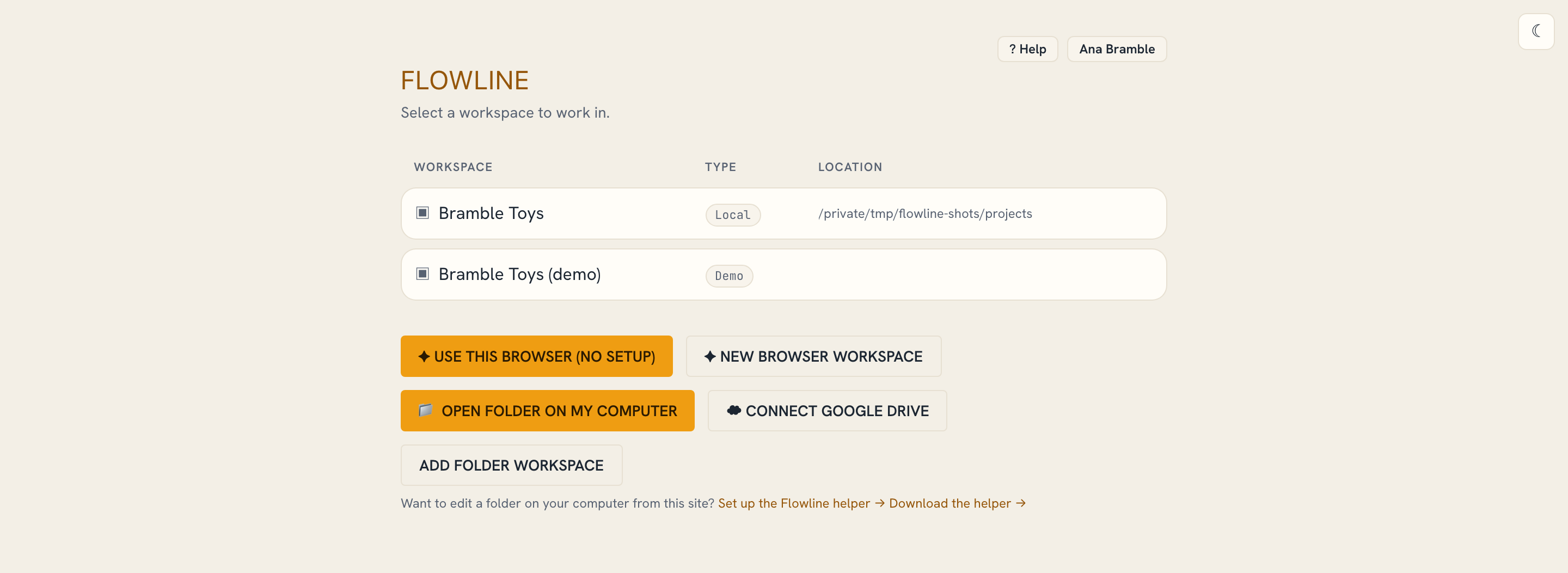
| Button | Projects live | Shared? | MCP |
|---|---|---|---|
| ✦ Use this browser (no setup) | This browser's private storage | No | No |
| ✦ New browser workspace | Same, under a name you pick | No | No |
| 📁 Open folder on my computer | A folder you pick in the browser | No | Through the flowline-mcp helper, not the server (09) |
| ☁ Connect Google Drive | Your Drive folder | Yes — everyone who connects the same folder | Yes |
| Add folder workspace | A folder on the server's disk | Yes, if the server is shared | Yes |
Add folder workspace appears only when the operator enabled server-disk
workspaces (LOCAL_WORKSPACES_ENABLED). A hosted, signed-in deployment keeps it
off so the server holds no project bytes.
Browser and computer-folder workspaces never send their bytes to the server, so an MCP server can't read them (06).
The Type and Location columns show where each workspace's projects are
stored. Click a row to open it; the one you open becomes the active workspace
that the editor and the REST API target. An MCP session follows it until it picks
its own with select_workspace (06).
Share through Google Drive
Connect a workspace to a Drive folder and anyone who connects the same folder sees the same projects.
- On the workspace picker, click Connect Google Drive and authorise access. First-time Drive setup is in Google Drive setup.
- Pick or create the folder that will hold the workspace.
- Share that Drive folder with your teammates from Google Drive, the way you share any folder.
- Each teammate clicks Connect Google Drive and selects the same folder.
Everyone now works against the same files. Flowline shows the Google account behind each file's last change (below).
Put a workspace under git
Git applies to a workspace on the server's disk. Browser, computer-folder, and Drive workspaces have no git panel.
- Open the workspace. If the folder is not a repository yet, the Sync panel offers Initialize git.
- In the editor, click the sync chip, open Remote ▾, and set the Origin URL, e.g.
https://github.com/you/repo.git. Pull and Push stay disabled until a remote exists; a local-only repository can still commit. - Connect your GitHub account in the same popover — see GitHub OAuth setup — so pushes authenticate and the Activity log can name you.
Teammates point their own workspace at the same remote to collaborate.
Commit, pull, push
Open a synced workspace and the projects screen shows a Sync panel above your projects.
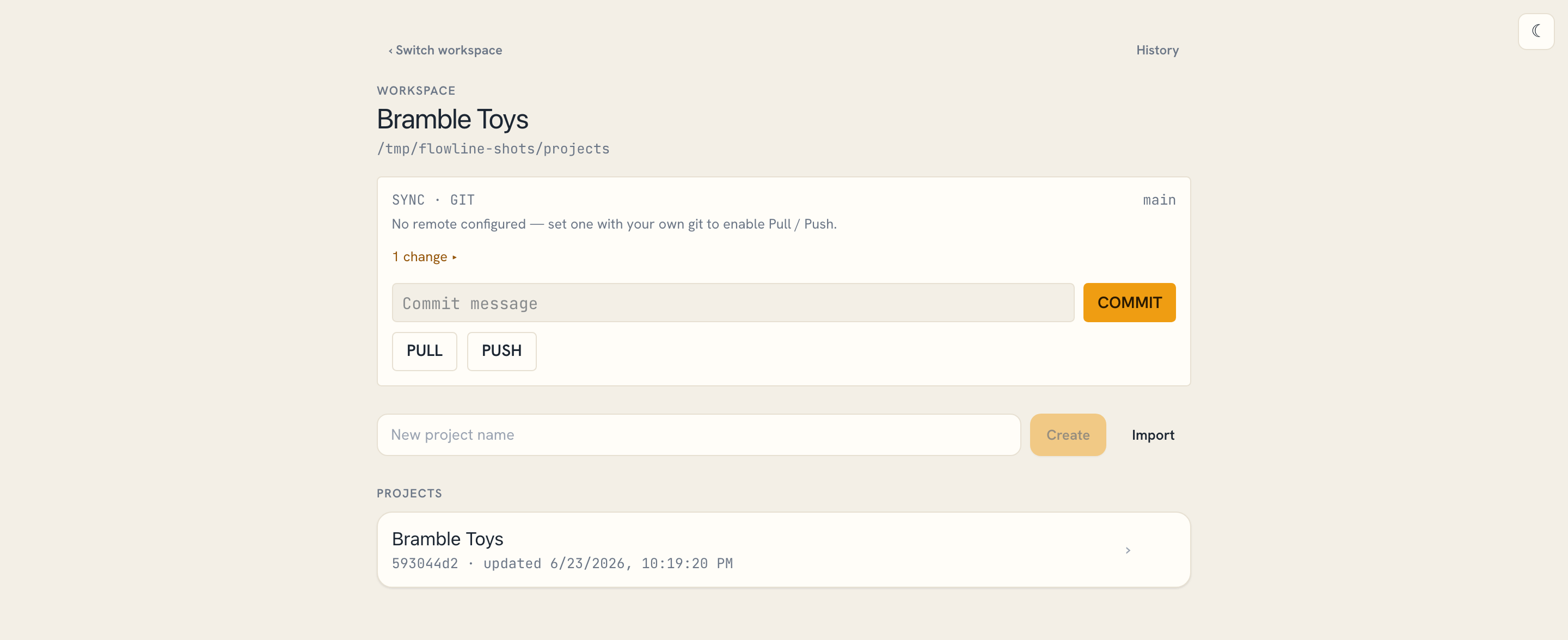
- Write a commit message and click Commit to save the current state of the workspace as one revision.
- Click Pull to bring in teammates' commits, and Push to publish yours. Both stay disabled until the repository has a remote.
- The panel shows the current branch and whether the working tree is clean or has uncommitted changes.
Commits are attributed to your connected GitHub account, so the Activity log can show who made each one. Connect GitHub before you commit if you want your name on your work.
Who you are
Flowline puts your name on the flows, suites and scenarios you own, and on the runs, results and bugs you record.
- Signed in: your account's name and email.
- Not signed in: the first project you open asks Who are you? The name and email stay in this browser. Save or Skip ends the question; closing the dialog with Escape or a click outside it asks again at the next project. To change the answer, click the name button (Your name until you set one) at the top of the workspace screen.
Until Flowline knows who you are, it leaves the name off what you record, hides the Mine filter, disables Take next, and shows no owner notice (Owners).
See who changed what
Select a card, a scenario or a suite and its panel shows who changed it last — Edited by Anna, 5 min ago. Each row of the flow list shows the latest change to that flow's design: its cards, notes, scenarios, suites, image details and the flow itself. Recording runs, results and bugs doesn't count. Flowline reads this from the storage, not from the files:
- Google Drive: the Google account behind the file's last change. Drive leaves out the email of someone who hides it.
- Git: the author and date of the last commit that touched the file, in a
server folder or a
flowline-mcphelper folder that is the top of a git repository. A file you changed and have not committed shows Not committed yet. In a shallow clone, files last changed before the clone's oldest commit name no one. If git fails or takes over 5 seconds, files list without authors. The projects screen dates each project by its last commit. In a working copy several people share, the author is whoever committed, not whoever edited: a commit takes in everyone's uncommitted changes. A team that wants each person's name on their changes gives each person a clone. - Browser and computer-folder workspaces, and other folders outside git: nothing is shown. Nothing records it.
Right after you save, the files you saved show no editor until the next check (every 15 seconds) (Live refresh).
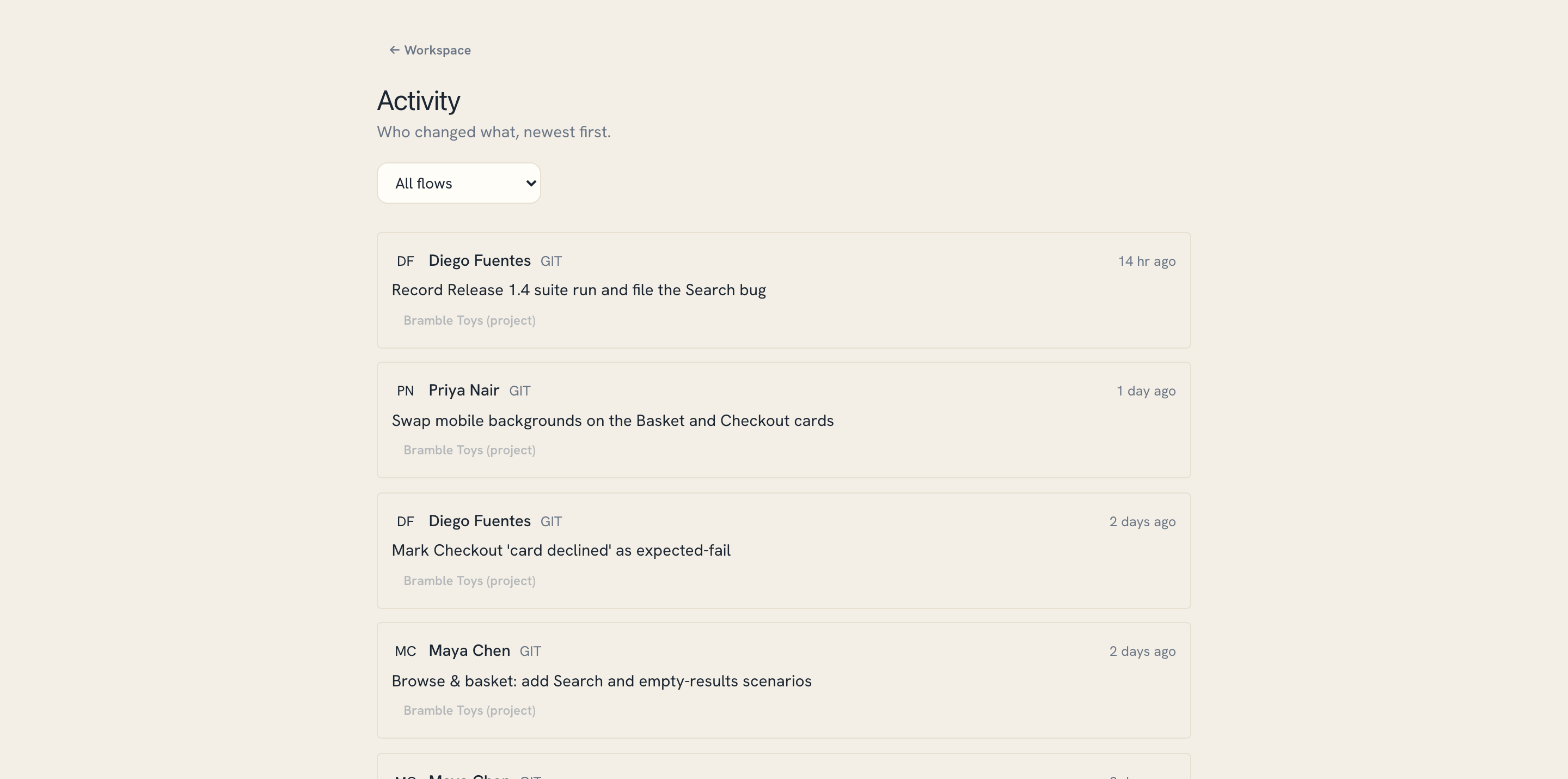
Click History on the projects screen of a git workspace to open the Activity log — every commit, newest first. The grey chips name what changed — a project, a flow or an asset — and clicking one jumps to it. All flows narrows the log to one flow. Drive workspaces have no Activity log.
Owners
A flow, a suite or a scenario can have an owner. With nothing selected on the canvas, pick one under Flow owner in the Inspector. Scenario owner is in the same panel, in the section for the scenario you have picked; Owner is in the suite editor. Someone else… opens a field for any email. The list offers:
- you;
- people already named in the project: owners, testers, bug reporters, and whoever started, finished or recorded a suite run, or is assigned a scenario in one;
- the people behind each file's last change;
- on Drive, everyone the folder is shared with, except deleted accounts. Drive shows that list only to people who can share the folder.
Agents never appear in the list.
The flow list, the suite list and the suite editor's Flow scenarios list show each owner. Mine narrows them to what you own; when nothing is yours, the list says Nothing here is yours.
Ownership is a label. Anyone who can open the folder can edit anything. When you make an edit you can undo in a flow someone else owns, the header says Owned by Anna — your edits are recorded as yours. It says so once per flow until you reload the page, and names the owner the flow has after the edit.
Owner and assignee emails live in the project's files, so everyone with access to the folder or the repository can read them.
Run a suite together
Several testers can run one suite cycle at once, each in their own browser. The steps are in 03.
Update Flowline on every tester's machine before you run suites together. An assignee is now a person, not text, and an older Flowline can't open the runner of a cycle that has one.
- Take next writes who took the scenario into the project before it opens it. Two people can't both take one: the second reads Bo already took the scenario "Login". in the header, and Flowline tries the next scenario. On Google Drive both can get it for a moment; the next update picks the same winner in every browser, and the other tester sees the same message.
- While the runner shows a cycle, a teammate's result appears as soon as they record it (See who's here). Without the live connection, Flowline checks that cycle's files every 5 seconds, on top of the 15-second check of the whole project. When that check finds a file removed, it checks the whole project at once. On a Drive workspace a teammate's result appears once Drive reports the change.
- Results are only added, never overwritten. When two people record one scenario, the later result counts and both stay under Results (n).
- An assignee saved as text by an older Flowline reads as a person: an email becomes that address in lower case, anything else becomes a name. The file stays text until someone changes the assignee. A name-only assignee isn't you once Flowline knows your email, so Take next and Mine skip it: pick the person again in Assignee.
See who's here
When teammates have the same project open on the same Flowline server, their initials show in the editor header, next to the project name, and in the flow list, under each flow they're in. Each person gets one avatar; after three, the rest show as +N. Hover an avatar to see what they're doing — Anna — editing, playing or testing, with (2 tabs) when they have the project open in more than one tab. Someone who skipped Who are you? shows as Someone. In the suite runner, a scenario a teammate has selected reads testing now: Anna, one name per tab.
Your own avatar is hidden when Flowline knows your email. With a profile that has no email, your other tabs show up as avatars.
- A teammate's save reaches your open project as soon as their editor announces it, and Flowline re-reads only the files they saved. On Drive, whose change feed can trail, the read repeats after 1, 2 and 4 seconds, then waits for the next 15-second check. An agent's write over MCP on the same server does the same. An edit through the REST API arrives with the 15-second check.
- It works in Google Drive, git, server-folder,
flowline-mcphelper and computer-folder workspaces. A browser workspace never joins — nobody else can open it — and neither does the demo. - Someone who closes the tab, or leaves through Projects, disappears in about 2 seconds. Someone whose connection drops disappears within about 15 seconds. A tab that joins or reconnects sees everyone in about 1 second, except that a teammate on an older Flowline can take up to 10 seconds to show after a reconnect. That teammate stays visible for up to 30 seconds after leaving: that app never answers the check that removes the others.
- While connected, the 15-second check keeps running, for teammates on an older Flowline, and the runner's 5-second check pauses. When the server has the live connection switched off, or it drops, Flowline goes back to both checks and shows no avatars.
Live edits. Teammates on the same server see your edits as you make them, before they are saved. Your editor sends them in batches every 50 milliseconds.
The live dot. The dot after the avatars shows the live channel. A project teammates cannot share has no dot. Hover the dot to read its state; N counts the wait down in seconds:
| Dot | Hover text |
|---|---|
| Green | Live: teammates' edits arrive as they make them. |
| Amber, pulsing | Connecting to the live channel. or Reconnecting in N s. The connection dropped, or this server refused it. Teammates' edits arrive on save meanwhile. |
| Grey | Live off: this server runs no live relay. Teammates' edits arrive on save. |
| Grey | Live off: this project has no live key yet. Teammates' edits arrive on save. |
| Grey | Live off: this project's live key is damaged. Teammates' edits arrive on save. |
| Grey | Live off: you are signed out. Sign in to see teammates' edits live. |
| Grey | Live off: the live relay is full or busy; retrying in N s. Teammates' edits arrive on save. |
When a teammate leaves with unsaved edits, a tab that is still open saves them, in about 4 seconds. After a crash or a dropped connection it takes up to about 15 seconds. Closing a tab asks first only when work would be lost: your edits that autosave will not write (Live refresh), or a change of a teammate who has left that storage lacks.
In git, a teammate who works in their own clone shows up here, but their save
reaches you when you pull. The first editor to open a project writes its key into
project-meta.json as an uncommitted change: commit and push it. Two clones that
each open the project before pulling write two different keys and land in two
rooms, and the pull stops on a merge conflict on settings.liveKey. Keep one of
the two keys, commit, and push; everyone joins that room once they pull it.
What the server sees. The server passes the messages on encrypted and keeps
none. It sees room ids and which accounts are connected, never what the messages
say. The key lives in the project's settings (settings.liveKey,
99), so anyone who can read the project can join
its room — someone removed from the Drive folder or the repository keeps the key.
A .flowproj.zip export leaves the key out; an imported project gets a new one.
Update Flowline on every teammate's machine. An older version keeps the key but shows no avatars, and its saves reach you only with the 15-second check.
Live refresh when the project changes elsewhere
While you have a project open, it can change underneath you — a teammate saves, you edit it in another tab, or an agent edits it over MCP or the REST API. Flowline merges those changes into the open project, keeping your place on the canvas: as they're saved, on the same Flowline server (See who's here), and at a check every 15 seconds while the tab is visible. Undo takes back only your own changes, and only those still as you left them: a property a teammate changed since stays theirs, and the header says so — for example Undone, except the title of the card "Login", which Anna changed since. When a teammate changed everything a step touched, one press uses the step up and undoes nothing: Anna changed this since; nothing was undone.
A save writes only the files you changed, and only if nobody changed them since you read them. Two people editing different cards, scenarios or suites never get in each other's way: each is its own file.
If you and a teammate change the same card, scenario, suite, note, flow or the project settings, Flowline merges it field by field — when you save, and as soon as a check or a live notice brings their copy. A field only one of you changed takes that change: their title and your description both stay. A card's position, its images and a scenario's path each count as one field. Inputs, expected results, branches, connections, scenario values, template overrides and a suite's scenarios merge entry by entry: branches you each added both stay, and two added at one place come out in the same order for both of you, the one saved first listed first. An entry one of you deleted and the other changed is kept. Suite results never merge: each is a new file (Run a suite together). A flow's result in a test session — status, note and time — counts as one field, as do a run's steps, verdict and finish: never your status with their note.
Where you both changed one field, the later save wins: when their change reaches you first, your editor keeps yours, and the header names the field and the teammate — for example You and Anna both changed the title of the card "Login"; yours was kept. The name comes from the teammate's live notice, else from Drive or git; without one, the header says a teammate. If one of you turned a card into an end while the other edited it, the later save keeps its card whole: …both changed the card "Login"; yours was kept and theirs was dropped.
If a teammate deletes the flow you have open, the header says A teammate deleted the flow you had open. If you had unsaved edits in a flow a teammate deleted, the deletion wins and the header says your changes were dropped — for example A teammate deleted the flow "Checkout"; your unsaved changes to it were dropped.
The Updated — Refresh prompt appears when the project's files are gone from storage — deleted elsewhere, or removed by a git checkout — when an older version of Flowline saved it in the single-file layout, and when a save to a git workspace is refused because the branch changed elsewhere.
Update Flowline on every teammate's machine before anyone edits a shared project. An older version that edits a shared Drive or git folder writes the old single-file layout back. Your editor then shows Updated — Refresh, and after Refresh the newer layout wins — the older app's edit is lost.
The first save of a project in the old single-file layout upgrades it and keeps
the old files: in Drive's trash for 30 days, in .backup/schema-6 in a server or
computer folder, and in the history of a folder under git.
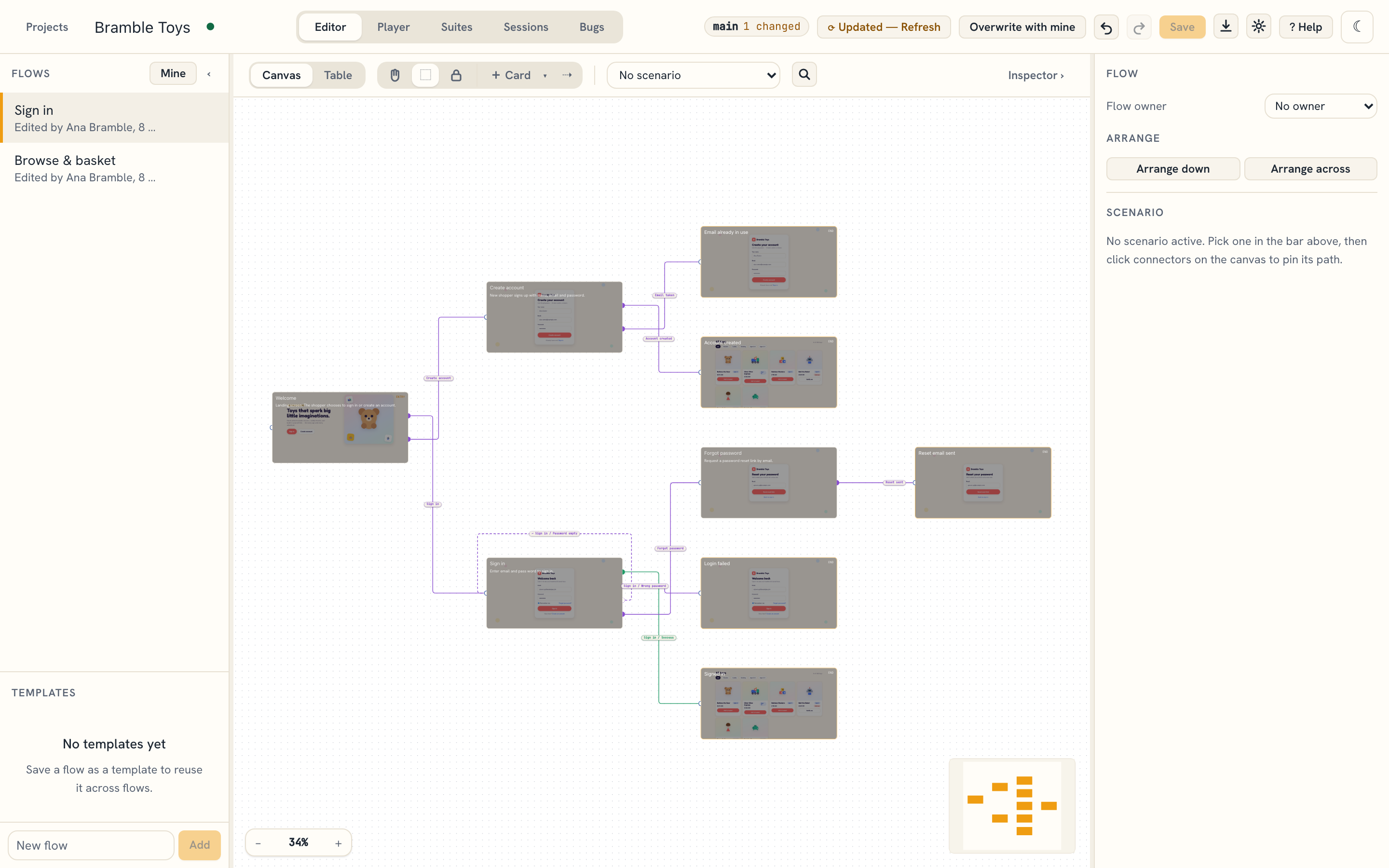
While the prompt is showing, Flowline stops saving your edits, so your copy never lands on top of the newer one; the Save button is disabled until you choose. If you have unsaved edits, the header also offers Overwrite with mine: it saves your version over the one that changed elsewhere. After a save refused because the branch changed, it offers only Refresh: your edits belong to the old branch. Refresh asks before discarding your unsaved edits. Import flow… is refused until you choose, since importing saves the project. Leaving through Projects, or closing the tab, with unsaved edits asks first — leaving drops them.
A project saved by a newer version of Flowline shows Newer version — changes are
not saved: Save is disabled, Import flow… is refused, and leaving with
unsaved edits asks first. Importing such a project from a .flowproj.zip is refused.
Update the app to edit or import it.
Where to go next
- What a hosted server does and doesn't keep: 07 · Using a hosted server.
- Driving the same projects from an AI assistant: 06 · Driving it with MCP.
- First-time backend setup: Google Drive setup · GitHub OAuth setup.
- What changed, what a team sees while only some have updated, and what is still limited: Release notes.