Flows and cards
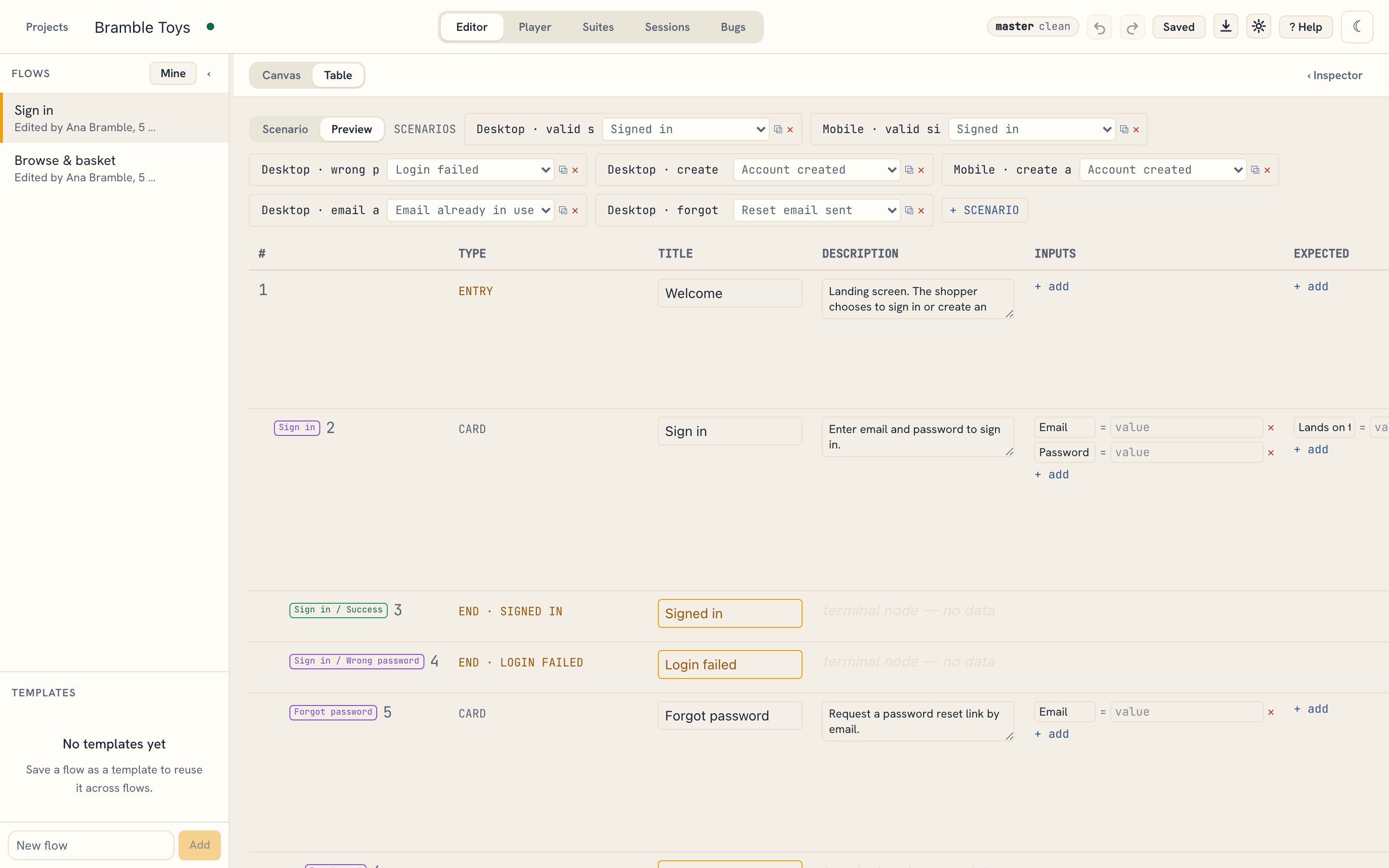
A flow is a graph of cards. This chapter shows how to read one and how to add and connect cards yourself, using the demo's Sign in flow.
After this chapter you can author a flow: add cards, give them inputs and branches, connect them, and set a background image.
Open the Editor
- Open Bramble Toys and select the Sign in flow in the left sidebar.
- Make sure the top toggle is on Canvas (the other option is Table).
- Collapse the sidebar with ‹ Hide flows in its header when you want the full width for the canvas, and bring it back with › Show flows.
Delete on a flow in the sidebar removes it, and autosave deletes its images about 600ms later; Cmd+Z after that brings the flow back but not the images — undo restores project state, not files autosave already deleted.
The entry card is marked ENTRY. Branches leave each card as labelled handles and
connect to the next card or to an END.
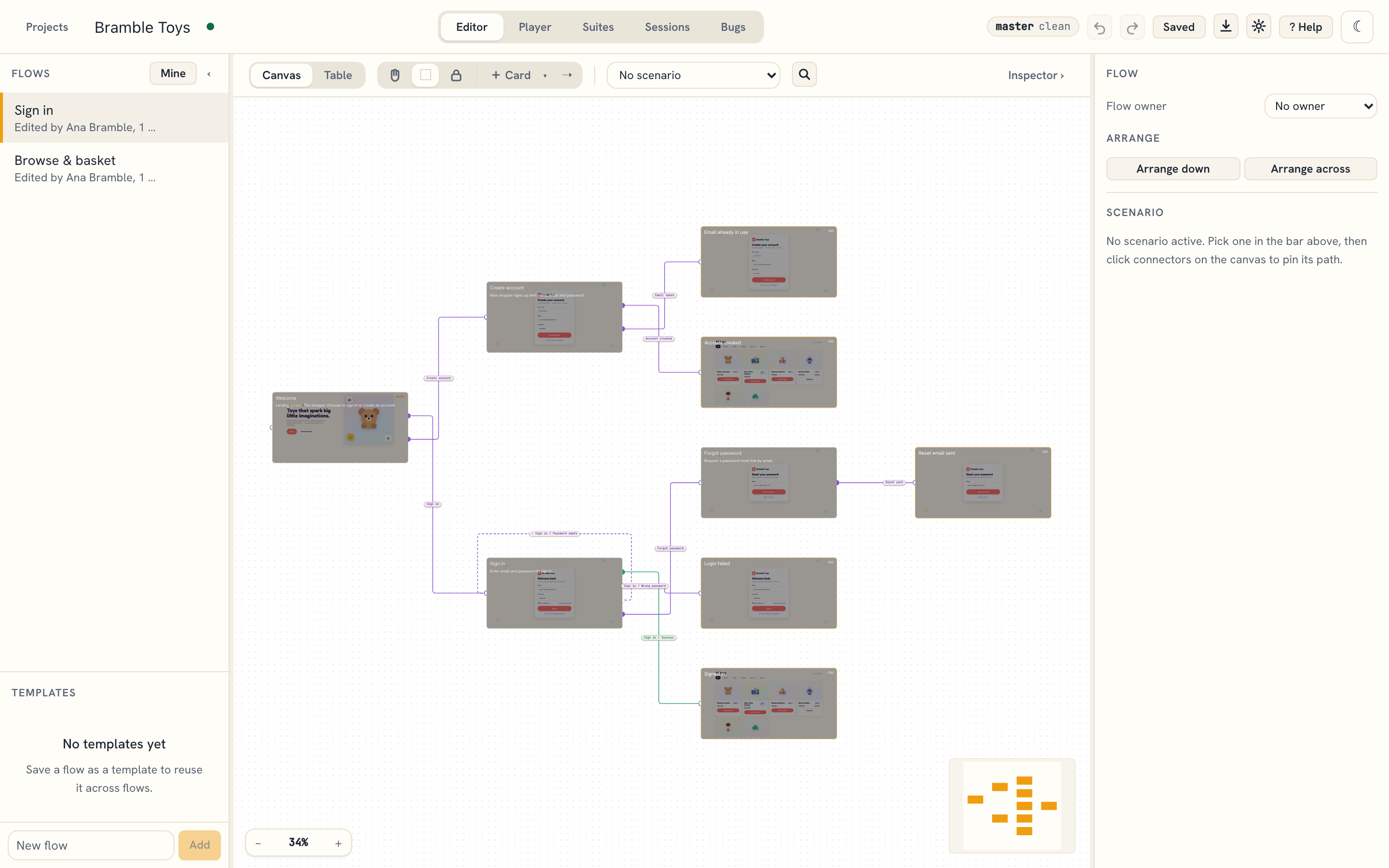
The demo's Sign in flow has four cards — Welcome, Sign in, Create
account, Forgot password — and five ends: Signed in, Login failed,
Reset email sent, Account created, Email already in use.
The Sign in card also carries an outcome that leads nowhere: an empty password shows an inline error and leaves the user where they are. See Outcomes that stay on the card below.
Add and edit a card
- Click + Card on the canvas toolbar (or press C), then click the canvas. The card appears there, selected.
- With a card selected, the Inspector opens on the right.
- Edit its title and description at the top.
- Under Inputs, click + add for each field the screen collects (e.g.
Email,Password). Pick a type: text, number, boolean, or long text. - Under Expected, add what the tester should verify on this screen.
- Under Branches, add one entry per outcome the card can have.
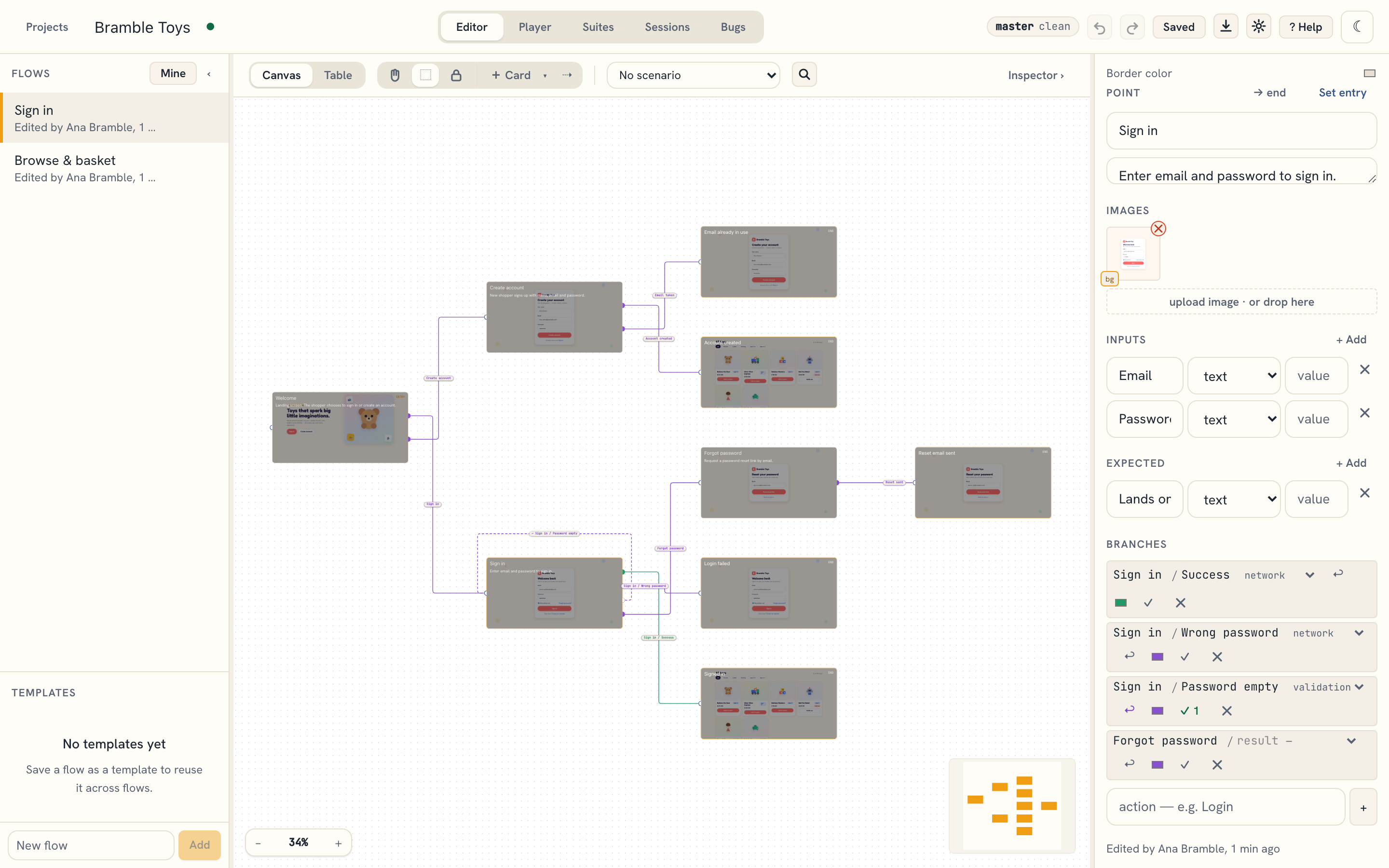
Removing a branch also removes any connection that left it. Renaming one keeps its connection.
Describe an outcome
A branch has two parts: the action the user takes, and the result the
system comes back with. Type the action in the first box, the result in the
second. The branch then reads Sign in / Wrong password.
Leave the result blank for a plain choice that has only one outcome, like
Back — it stays a single label, as before.
Pressing one button can produce several results, so give each its own branch with the same action:
| Action | Result | Goes to |
|---|---|---|
Sign in |
Success |
Signed in |
Sign in |
Wrong password |
Login failed |
Sign in |
Password empty |
nowhere — stays on the card |
That is exactly how the demo's Sign in card is built. During a run these appear grouped under one Sign in heading, and the tester picks the result they actually got.
Two optional settings sit beside each branch:
Kind — tag the outcome as
ui,network, orvalidation. Useful when you want a reader to know a result came back from the server rather than from a field check.Expected — what the tester should verify for this result specifically, separate from the card-wide Expected list.
Successmight expect "lands on the catalog";Password emptymight expect "red text under the password field".Click the ✓ beside a branch to open its own Expected list, and add rows the same way you would for the card. The ✓ carries a count once the branch has any, so you can see at a glance which outcomes are covered.
Where these show up during a run depends on whether the branch moves the tester on. A branch that navigates describes what should be true after the move, so its expected results appear on the card they arrive at, under Expected after Sign in / Success. A branch that stays on the card starts a fresh visit of that card, which shows them the same way — under Expected after Sign in / Password empty.
Outcomes that stay on the card
Not every outcome moves the user on. A failed sign-in usually shows an inline error and leaves them where they are.
Mark such a branch stays on card with the ↩ toggle in the Inspector. It then:
- draws on the canvas as a dashed loop: out of the branch's handle, around the card, and back into that same card — the shape of an outcome that goes nowhere;
- records the outcome during a run, along with its expected results, and starts a fresh visit of the same card — so the next attempt begins with its own Pass/Fail and note rather than inheriting the last one.
The demo's Sign in card uses this for Sign in / Password empty, with an
expected result of "Inline error under password". A wrong password, by contrast,
does end the journey — it leads to the Login failed end.
If you toggle ↩ on a branch that already has a connection, the editor asks first, then removes that connection.
Connect cards
- Hover a card's right edge to reveal its branch handles. Connections always leave a card on the right and arrive on the left, so a route's direction reads from the cards alone. Branches marked stays on card show a dashed loop instead of a handle — they are not meant to lead anywhere.
- Drag from a branch handle to the target card to connect them. The connection is labelled with the branch name.
- To branch to a terminal outcome, set the stamp's ▾ to End, click the canvas, name the outcome, and connect a branch to it.
To delete a node or edge, select it and press Backspace or Delete.
Put screenshots on cards and ends
A card shows a real screenshot behind its title, so a flow looks like the product it tests. Ends hold images the same way.
Drag image files from the desktop onto the canvas:
- Onto empty canvas — each image becomes a new card where you dropped it. Several at once cascade down and to the right, one card per image.
- Onto a card or an end — the image joins the ones it already holds. The node under the cursor is outlined while you drag.
A template instance takes no images — it shows the name and exits of the template it points at, not cards of its own.
From the Inspector:
- Select a card or an end.
- Under Images, click upload image or drop files onto the box.
The first image is marked bg and renders behind the title. Once a node holds
more than one, click ★ on the image to show. Cmd+Z undoes a whole drop,
however many images it carried.
In the demo, every card already carries a desktop screenshot of the mock shop. The next chapter shows how a scenario swaps that background per platform.
Moving around the canvas
Scroll with two fingers to move the canvas in any direction. Pinch, or hold ⌘ and scroll, to zoom in on whatever the pointer is over. Hold Space and drag to pan from any tool.
The canvas starts in Select (V): dragging on empty canvas draws a selection box, and Shift-clicking adds one card at a time. Hand (H) is still there for a mouse with no sideways scroll — it drags the canvas instead of selecting.
The percentage bottom-left is also the zoom menu. ⌘0 returns to 100%, ⇧1 fits the whole flow on screen and ⇧2 fills the view with the selection. ⌘= and ⌘− step in and out.
Work on several cards at once
The editor bar carries the canvas mode. Lock (L) lets you pan and read without moving anything — a locked card still opens in the inspector and its text is still editable; it is the layout that is protected. It also blocks nudging, cutting, and the Cut, Delete, Align, Space evenly and Arrange (including Arrange flow) commands, in both the right-click menu and the inspector.
Two tools sit beside these modes. Stamp (C) drops a card wherever you click and stays armed, so a run of cards costs a run of clicks. Connect (X) links two cards: click one card's outlet, then the inport handle of the card it leads to. Esc leaves either tool for the mode you armed it from.
Drag a box around cards, or Shift-click to add one at a time. Cmd+A selects every card and note in the flow, and Esc clears the selection. With several cards selected, the inspector swaps to the group actions:
- Drag any selected card and the whole selection moves with it.
- Arrow keys nudge the selection 1px, or 10px with Shift held. Holding a key is one undo step.
- Cmd+D duplicates them, keeping the connections between them. Connections leaving the selection are not copied, and a copy never becomes the flow's entry card.
- Cmd+C, Cmd+X and Cmd+V copy, cut and paste. A paste lands under the pointer, keeps the connections between the copied cards, and works in another flow of the same project.
- ⌥-drag drags off a copy: the original stays where it is.
- ⇧-drag keeps the drag straight, along whichever direction you have taken it furthest.
- Right-click opens a menu for what you clicked. A card offers duplicate, copy, cut, delete and set as entry. A selection adds align (left, centres, right, tops, bottoms), space evenly across or down (three or more cards) and arrange. Empty canvas offers paste, add card, add end, add note and arrange flow.
- Arrange down / Arrange across lays out only the selection and leaves the rest of the canvas alone. Cards outside the selection do not move, so a selection can land on top of one — drag it clear if that happens.
- Delete or Backspace removes them, connections and all. Each of these is a single undo step, however many cards it touches.
Cards pull into line with their neighbours as you drag, and a guide line shows what they lined up with. Snap to grid in the zoom menu is off by default; turn it on to snap to the 20px grid behind the canvas instead. While it is on, cards do not snap to each other.
Leave a note
Set the stamp's ▾ to Note and click the canvas to drop a sticky note; double-click it to write. Drag a note onto a card to pin it — a pinned note moves with that card and is deleted with it. Drag it off again to set it loose.
Notes are for whoever is building the flow. They travel with flow and project exports, and they never appear in the Player, the Table view, or a session PDF. An assistant reads and writes them over MCP — see Chapter 06.
The canvas explains itself
? Help → Canvas keys in the header — or pressing ? on the canvas — opens a panel listing every mode, tool and shortcut described above. It is generated from the same data the editor binds its shortcuts from, so it cannot drift out of date.
Table view
Switch the top toggle to Table to edit the flow as a spreadsheet. It opens on one scenario's path: pick the scenario from the dropdown, and the table lists only the cards it visits, with columns for inputs, expected, branches, and that scenario's values. Click Preview for every card at once, one column per scenario — the fastest way to fill in many values across many scenarios.