Draw the journey.
Run it as a regression suite
Model a feature as a flow of screens, run it as a regression suite, and turn failures into bugs — in your browser.
- Runs in your browser
- No database to host
- Saves to Drive, a folder, or this browser
| Card | Kind | Branch | Leads to |
|---|---|---|---|
| Welcome | Entry | Sign in | → Sign in |
| Sign in | Card | Valid | → Signed in |
| Sign in | Card | Wrong password | → Login failed |
| Sign in | Card | Password empty | ↵ stays on card |
| Signed in | End | — | terminal |
| Login failed | End | — | terminal |
Look before you sign in
Start in the read-only demo, see the storefront it tests, then sign in to build your own — no install, no database.
Try the demo
Open Bramble Toys read-only. Pan the canvas, walk the Player, read recorded suite runs.
See the product
Bramble Toys — the storefront the demo's flows are written against. Each screen links back to its flow card.
Sign in
Sign in with Google to create a workspace and your first project. Your flows save as you draw them.
Eight pieces, one graph
The same vocabulary on the canvas, in the table, and in the API. Learn it once.
Flow structure
A feature drawn as connected cards — the path a user takes.
One screen or step — holds a title, inputs, and a screenshot.
A labelled choice out of a card — the edge to the next one, or a dashed loop when the outcome stays put.
A final outcome of the flow — like “Signed in” or “Login failed”.
Execution
One set of field values — and the outcome you expect for it.
A scenario that swaps each card’s screenshot — same flow, desktop and mobile.
A group of scenarios — run against a build, with results recorded.
Result
A failing scenario — captured with its card and the outcome you expected.
Author, run, and triage in one place
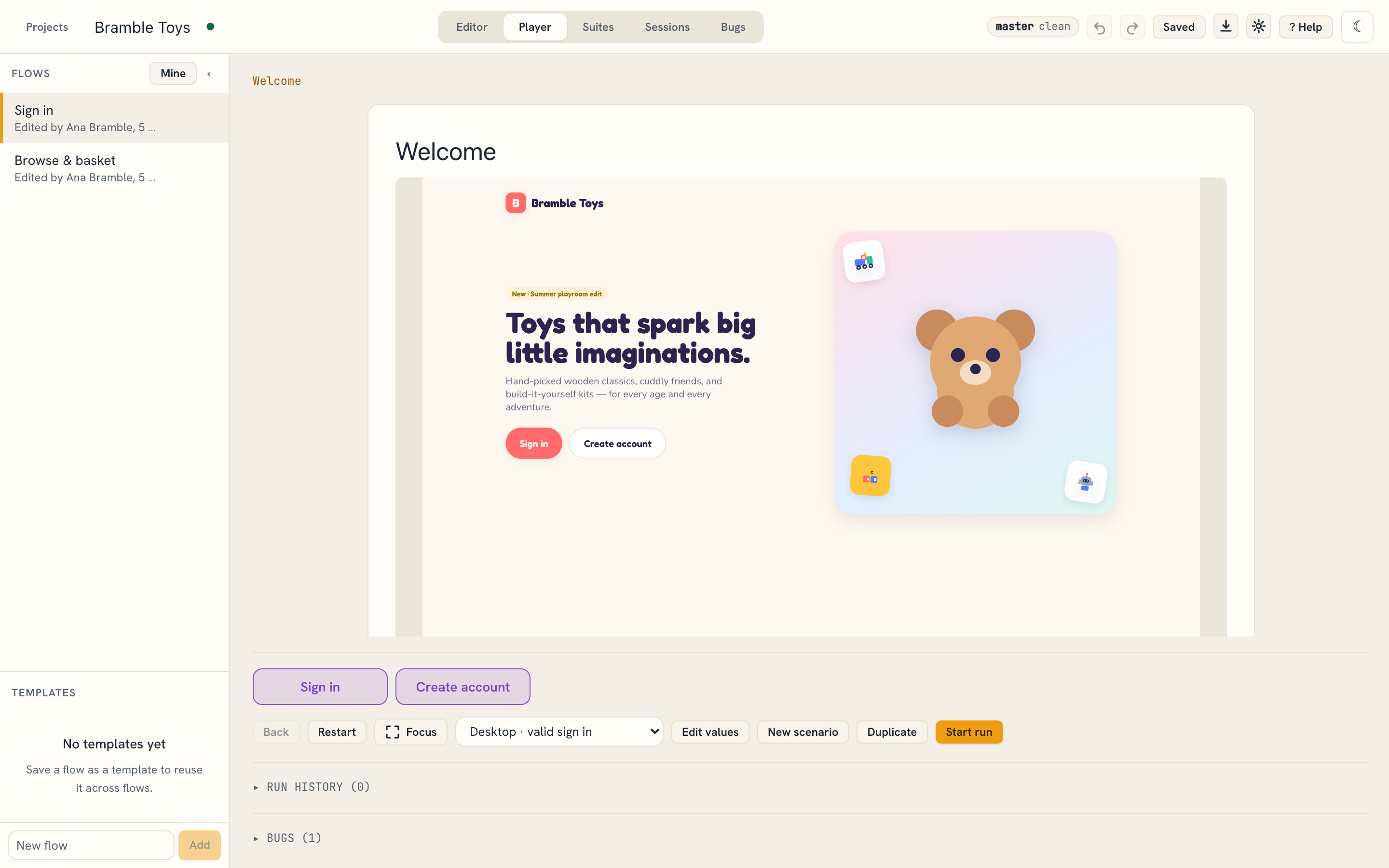
Walk the flow in the Player
Step through a flow card by card with the real screenshot in view, taking each branch the way a user would. An outcome that stays on its card records in place, without moving you on.
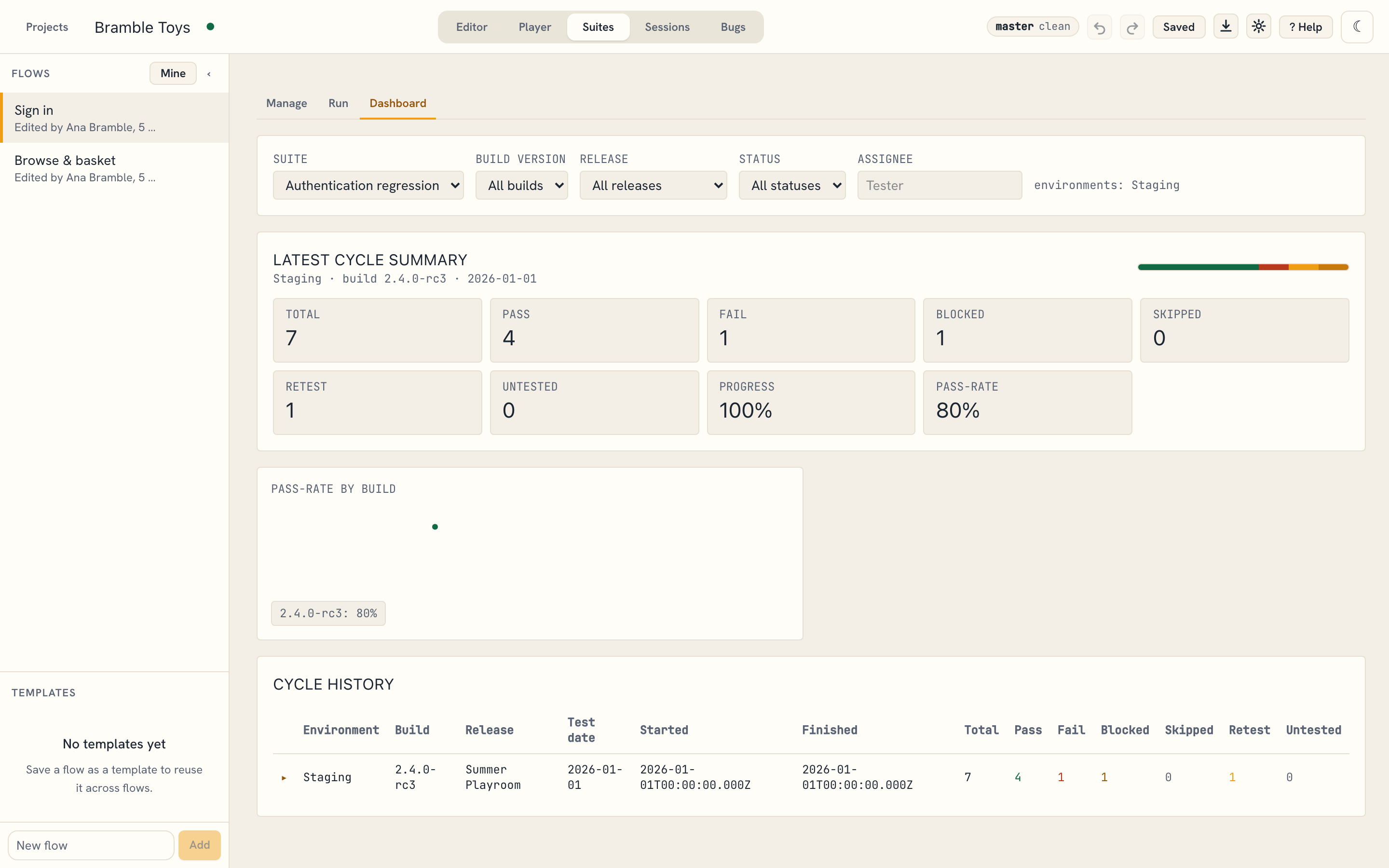
Record pass / fail / blocked per build
Group scenarios into a suite, start a run against a build, and mark each result. The dashboard keeps the pass rate and history so a regression shows up the moment it lands. For exploratory work, the Sessions tab captures a session across every flow and exports it — results, bugs and all — as a PDF.
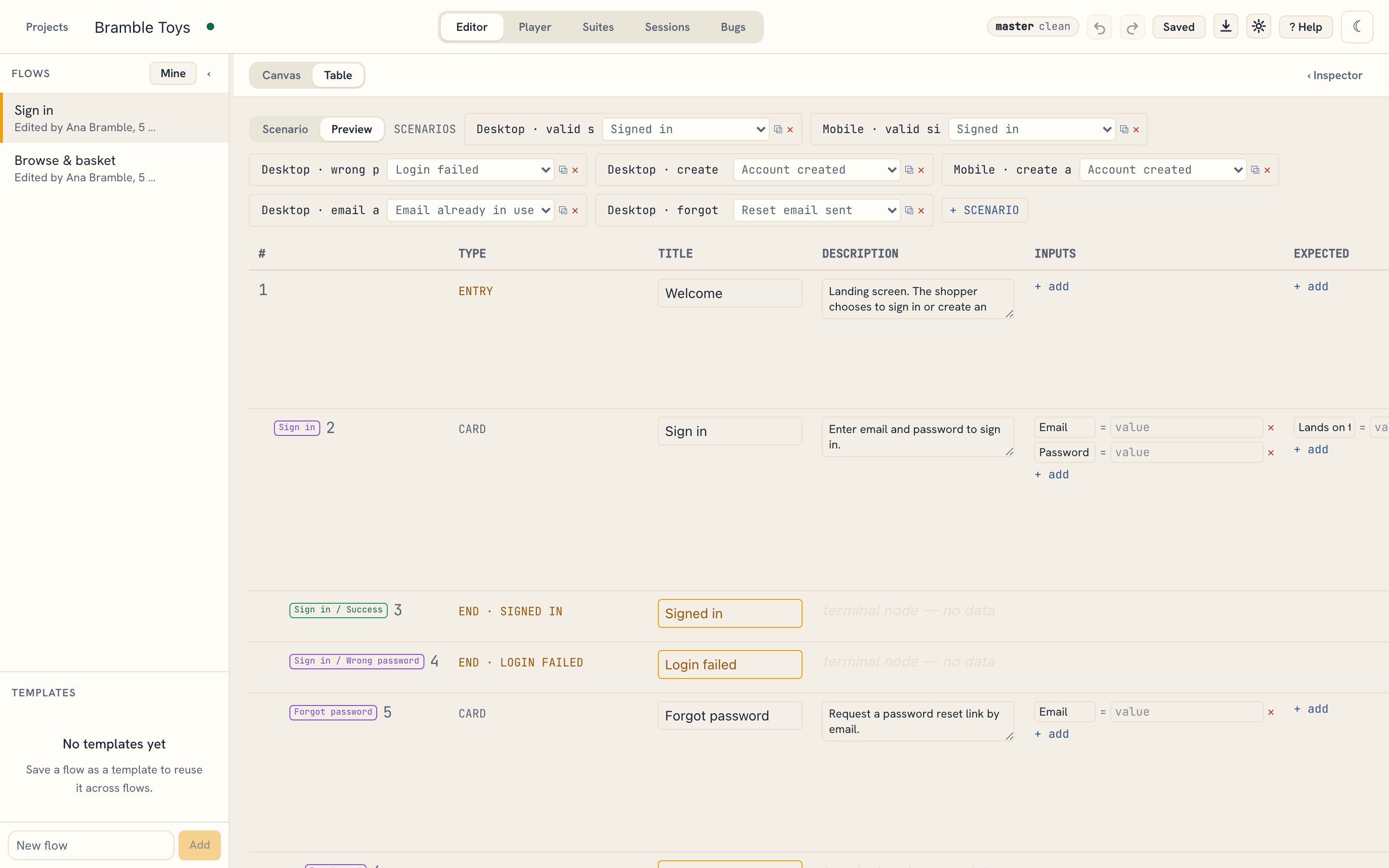
Edit the same flow as a table
The Table view is the same data — cards, branches, and scenario values — as a grid you can fill in fast. Switch back and the graph reflects every edit.
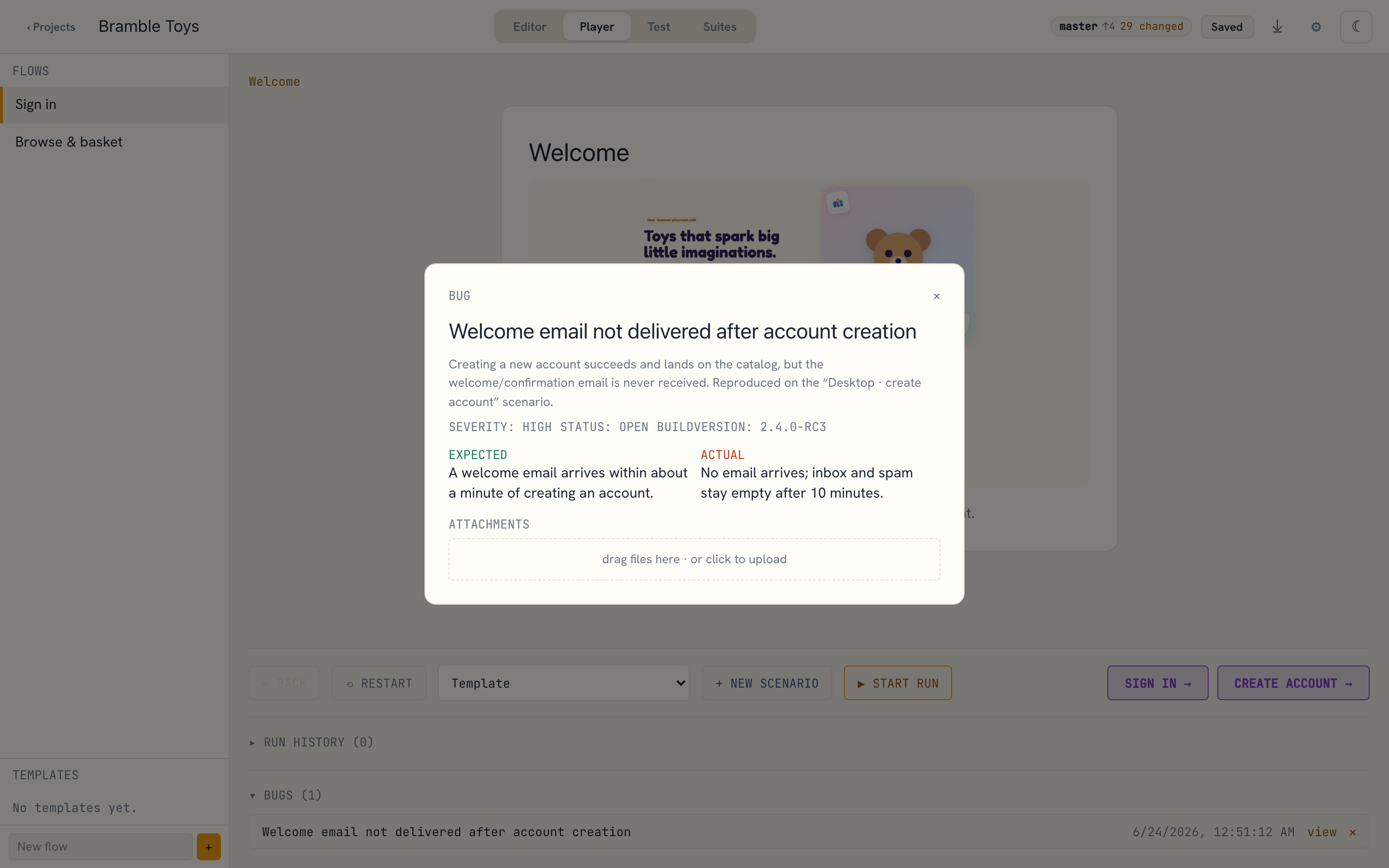
Failures become bugs
When a scenario fails, file it from the Player. The bug carries the run’s steps and the scenario it ran under, so whoever picks it up already has the repro; you add expected vs actual, severity, and screenshots.
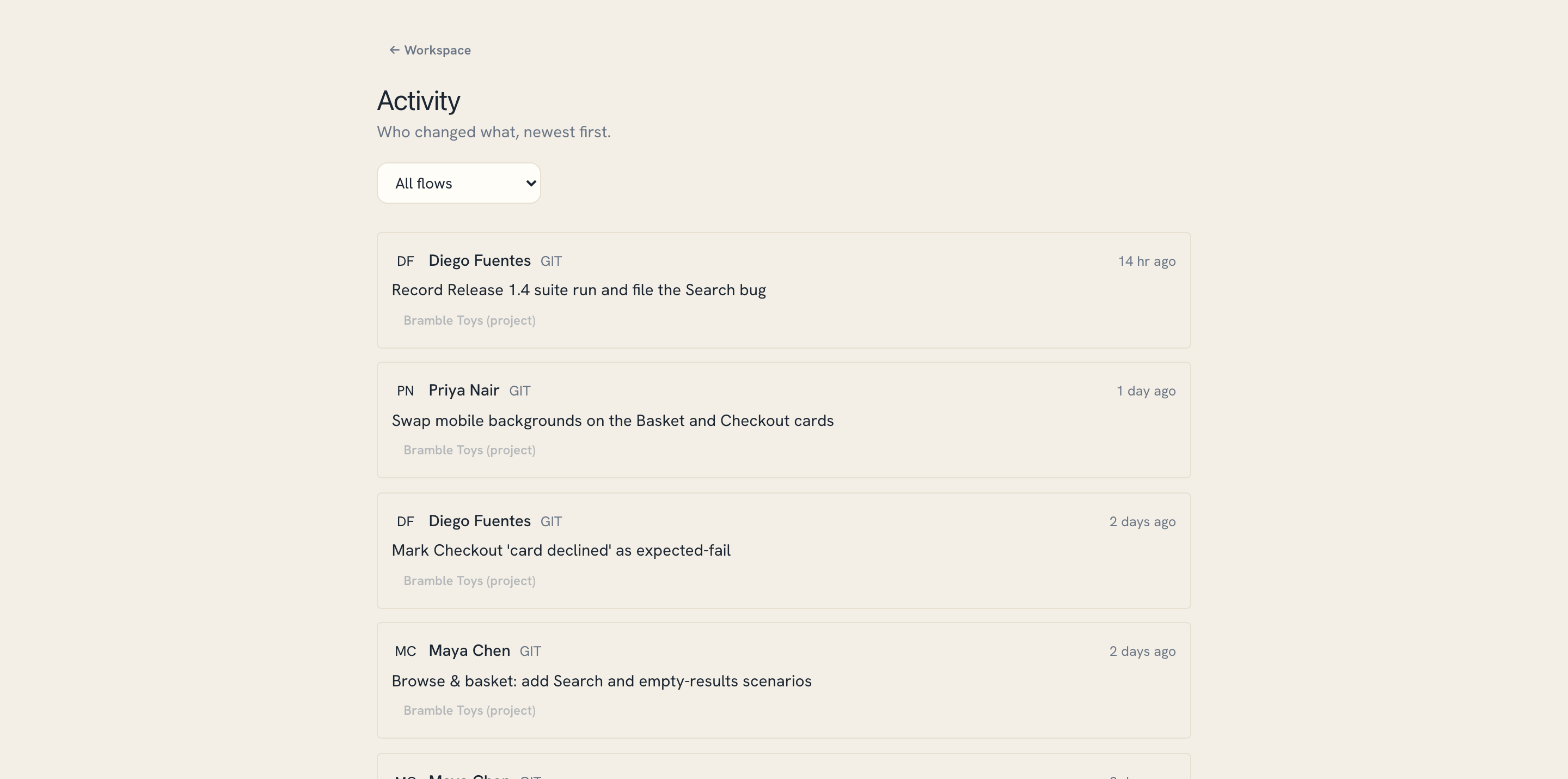
Share work, and see who changed what
Put a workspace in a shared Google Drive folder or a GitHub repo and your team opens the same projects. Commit, pull, and push from the projects screen; the Activity log lists every change by author and time. Edit a project elsewhere — another tab, a teammate, an agent — and the editor offers a one-click refresh.
Drive it from your AI assistant
Flowline speaks MCP. Point Claude Desktop, Cursor, or Copilot CLI at your team's URL with a personal token and ask in plain language — it authors flows, defines scenarios, attaches card screenshots, leaves notes, runs suites, and files bugs on the same workspace the web app shows. The open editor notices within 15 seconds and offers a one-click refresh.
create_project to file_bug
MCP reaches workspaces the server can read — a Google Drive folder, a folder on the server, or a folder on your own computer via a small local helper (no account needed). A workspace kept only in your browser never sends its bytes anywhere, so an agent can’t see it; the workspace picker marks those No MCP.
Ready to test on a canvas?
Open the demo to look around read-only, or sign in with Google to start your own project — no install, no database.