Player and bugs
The player walks a scenario card by card, the way a tester would click through the product. When a step is wrong, you file a bug from the same place. This chapter shows both.
After this chapter you can play a scenario step by step, file a bug against a flow, review every bug in the project, and export a filtered set as a zip.
Play a scenario
Open Bramble Toys, select a flow, and click the Player tab.
Pick a scenario in the dropdown (e.g. Desktop · valid sign in), or leave it on Template to walk the raw flow.
The current card fills the screen with its background and inputs. The buttons at the bottom-right are its branches.
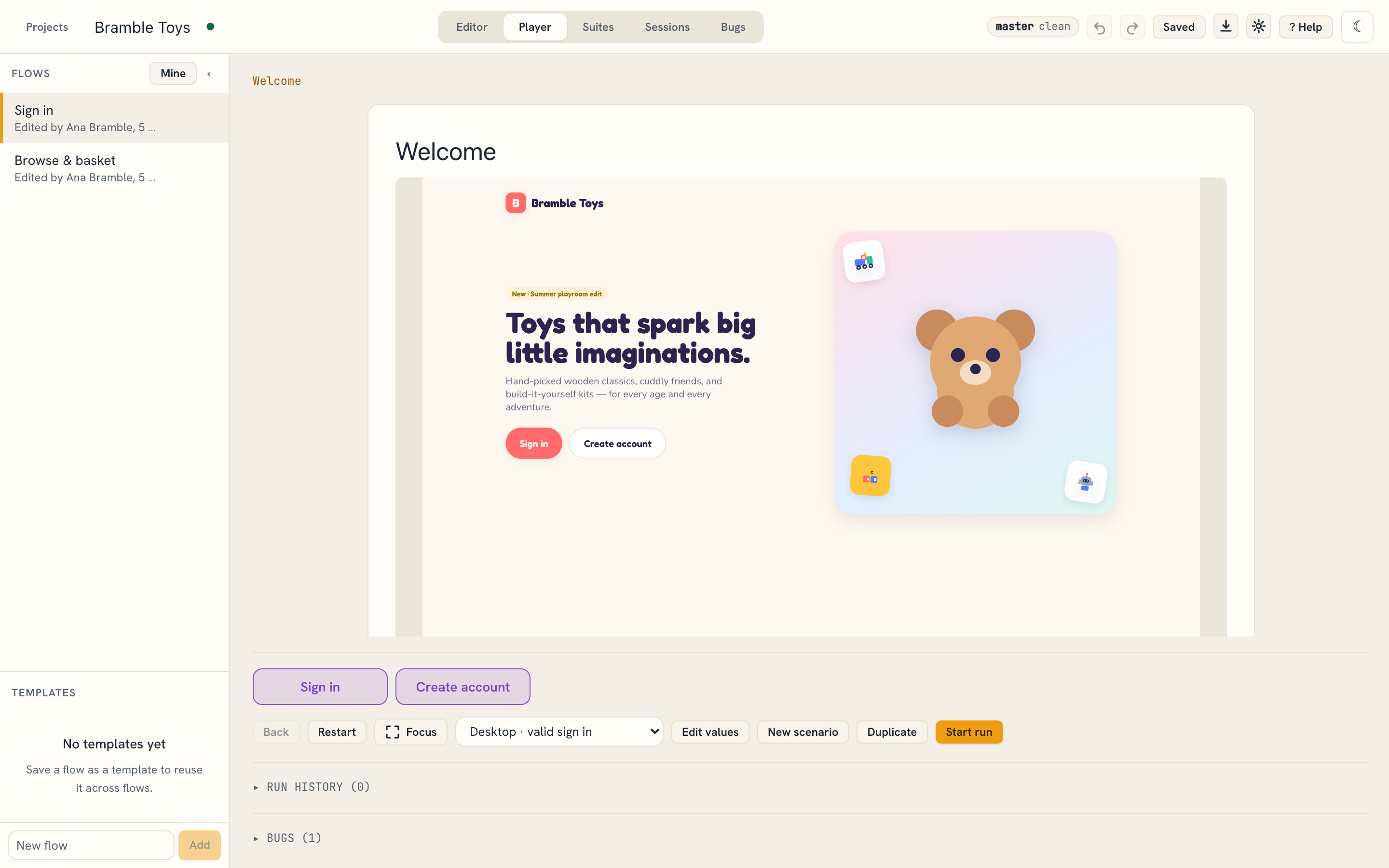
The player on the Welcome card Click a branch (e.g. Sign in) to move to the next card.
Use Back and Restart to navigate. Click Start run to record a pass through the flow.
The header path shows where you are. The walk ends when you reach an END.
File a bug
A flow keeps its own bug list. File a bug whenever a step does not behave as the scenario expects.
- Start a run with Start run. File bug appears in the player toolbar and stays available until you leave the run — you can also file one from a failing suite run.
- Give it a title and description.
- Set severity (
low,medium,high,critical) and status (open,fixed,wontfix). - Fill in expected and actual so the defect is reproducible.
- Add attachments — screenshots of what you saw.
The bug records the steps you walked, plus the scenario, suite run, and build version of the run you filed it from.
Past bugs for the flow sit under ▸ Bugs (n) at the bottom of the player.
Review a bug
Open a bug to see the full record: severity, status, build, and the expected-versus-actual that defines it.
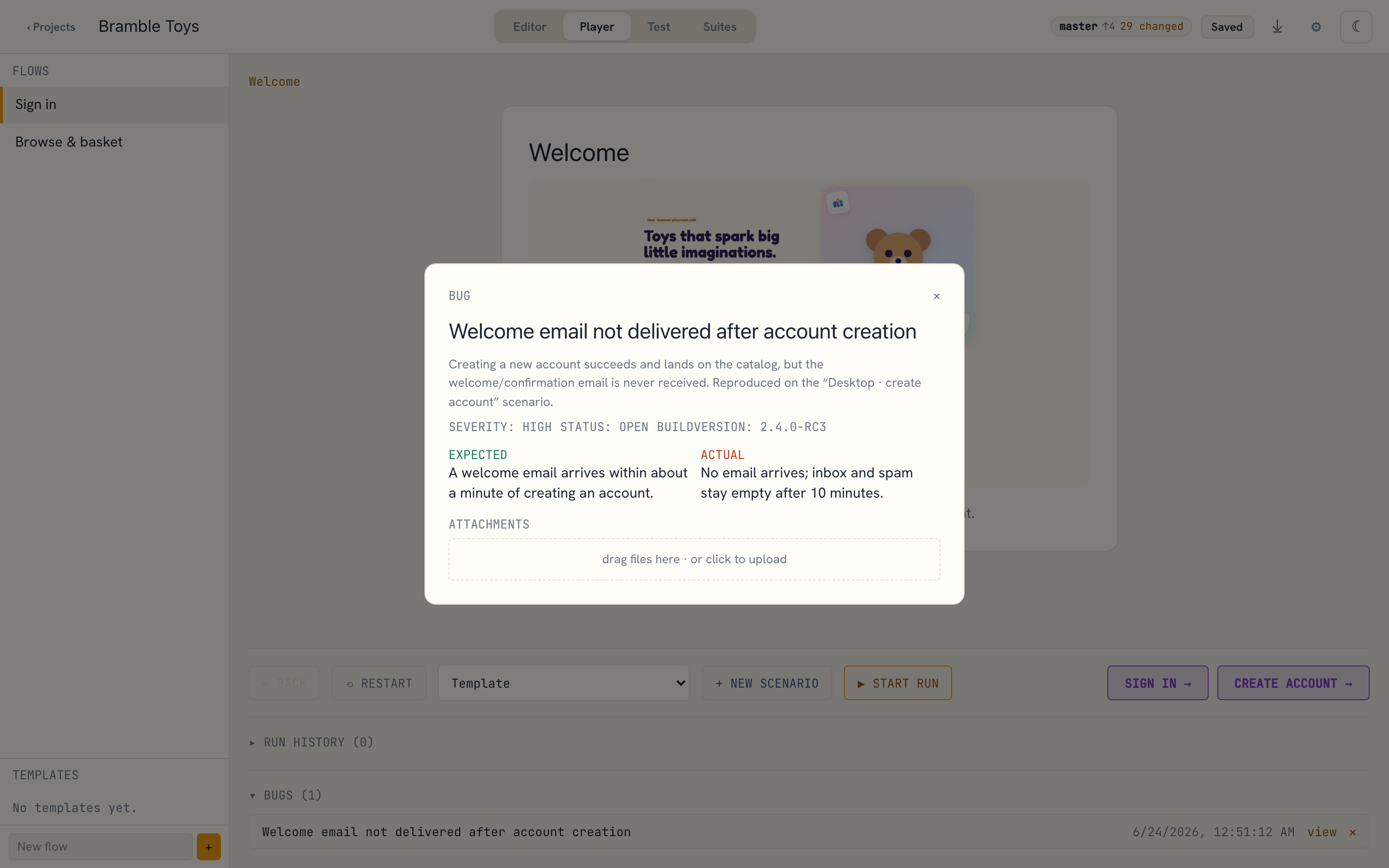
The demo ships two open high bugs against build 2.4.0-rc3 — Welcome email not
delivered after account creation (Sign in) and Mobile search returns zero
results (Browse & basket) — so you can see how a bug links a failing scenario back
to a build.
Review every bug in the project
The Bugs tab lists bugs from every flow in the project, newest first. Each row shows its flow, severity, status, attachment count, and the date it was filed.
Narrow the list with the filters above it:
- Flow — one flow, or all flows.
- Session — one test session, or all sessions.
- Severity and Status — one value, or any.
- Has attachments — hides bugs with no files.
Select all (n) ticks every row the filters left. The bar below the filters counts what you have selected, as bugs and as files.
Export bugs as a zip
Click Export to download the selected bugs. The zip holds one folder per
bug with its attachments, a manifest.csv, and a report.pdf. You can start
the same export from a test session with Export bugs…, which opens this tab
with that session already selected.
An assistant can produce the same zip over MCP with export_bugs, filtered by
flow, suite run, test session, or explicit bug ids (06).