Scenarios and platforms
A scenario is one concrete run through a flow: a pinned path, a set of input values, an expected outcome, and a background image per card. This chapter shows how scenarios let you test the same flow on Desktop and Mobile by swapping backgrounds.
After this chapter you can create a scenario, set its values, give it per-platform card backgrounds, and pin the path it walks.
Why scenarios
A flow has many paths. A scenario freezes one of them so you can run it the same way every time. The demo's Sign in flow ships seven scenarios:
Desktop · valid sign in→ Signed inMobile · valid sign in→ Signed inDesktop · wrong password→ Login failedDesktop · create account→ Account createdMobile · create account→ Account createdDesktop · email already taken→ Email already in useDesktop · forgot password→ Reset email sent
The Desktop · and Mobile · pairs walk the same path with the same
inputs. The only difference is the background image on each card.
Follow a scenario in the Table
- Open Sign in and switch to Table.
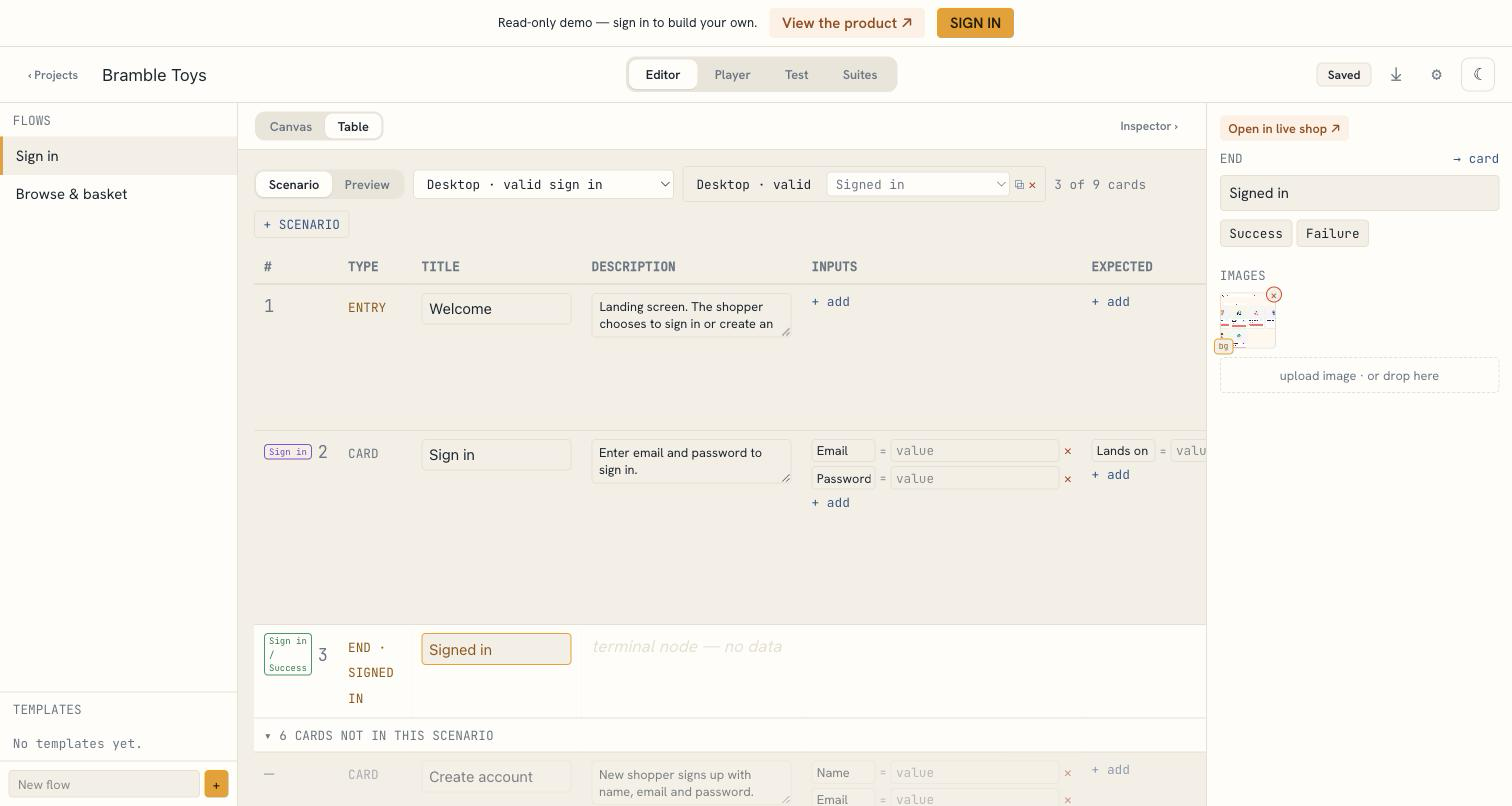
- The dropdown picks one scenario. The table lists only the cards its path visits, in order, with a card count (e.g. 3 of 9 cards) next to it.
- The Branches column shows the branch it takes at each card. A branch nobody pinned is marked auto — the first connected branch, not a choice anyone made.
- Cards outside the path collapse into N cards not in this scenario at the bottom; click it to see them, dimmed. Each still has a Branches picker — pin one ahead of time and it's saved but has no effect (shown as planned, not auto) until an earlier reroute makes the walk reach that card.
- A card the scenario's path visits more than once — because the flow loops back to it — shows up as its own row each time, in order. Only the first row has an editable Branches picker; later visits show the plain branch list instead. Editing a specific revisit is done in the Player, not the Table (see below).
To compare every scenario side by side instead, click Preview: one row per card, one column per scenario.
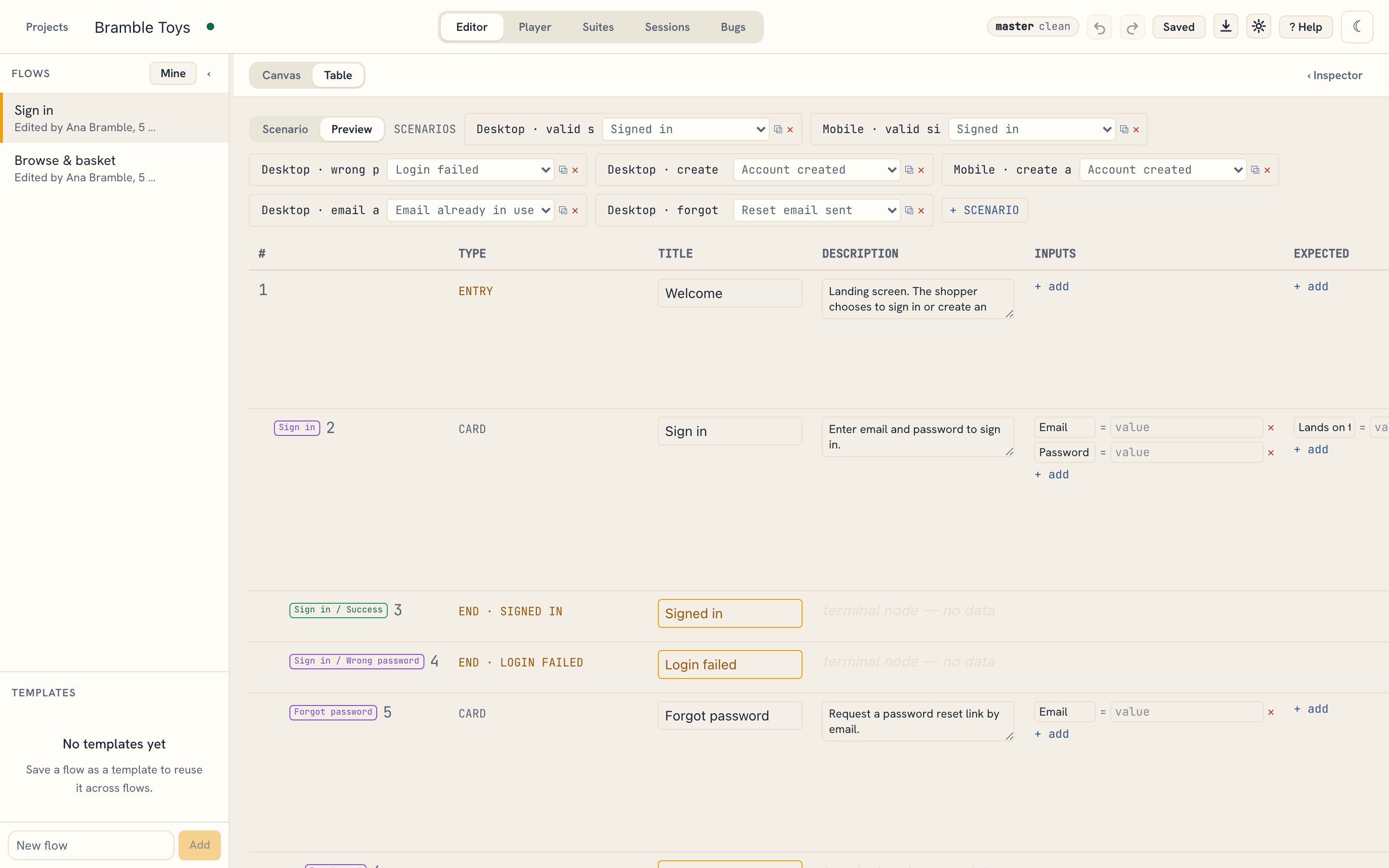
In Preview, the Desktop · valid sign in column resolves the Welcome card to
welcome-desktop and the Sign in card to signin-desktop; the Mobile · valid sign in column resolves the same cards to welcome-mobile and signin-mobile.
Create a scenario
- In the Table, click + Scenario (or New scenario in the Player).
- Name it, e.g.
Mobile · forgot password. - In its column, set the inputs each card needs.
- Set the expected outcome to the end the scenario should reach.
- For each visited card, set the background dropdown to the platform image you
want (e.g.
signin-mobile).
A scenario only overrides what you set; cards you leave alone fall back to the card's own default background.
Pin the path a scenario walks
A scenario's path is which branch it takes at each card. Set it two ways.
Pin a branch directly in the Table. In the Branches column, pick the branch you want. The card updates immediately, and every card after it in the table follows the new path.
Walk it once in the Player.
- Open the Player, pick the scenario, and click Start run.
- Click through the branches you want the scenario to take.
- Click Update path to apply what you just walked to this scenario's pinned path — cards you didn't visit on this run, including any off-path plans, keep whatever they had. Click Save as new instead to snapshot the run as a separate scenario, leaving this one untouched.
Either way, replaying the scenario in the Player offers the pinned branch as the next step instead of asking.
This is also the only way to set the branch for a card the scenario visits more than once: walk through the loop in the Player, taking whatever branch you want at each visit, then Update path. The Table will show each visit as its own row once you do.
Verify the platform swap in the Player
The background override applies wherever the scenario is rendered, including the step-by-step player.
Open the Player tab.
In the scenario dropdown, choose Desktop · valid sign in. The Welcome card shows the wide desktop screenshot.
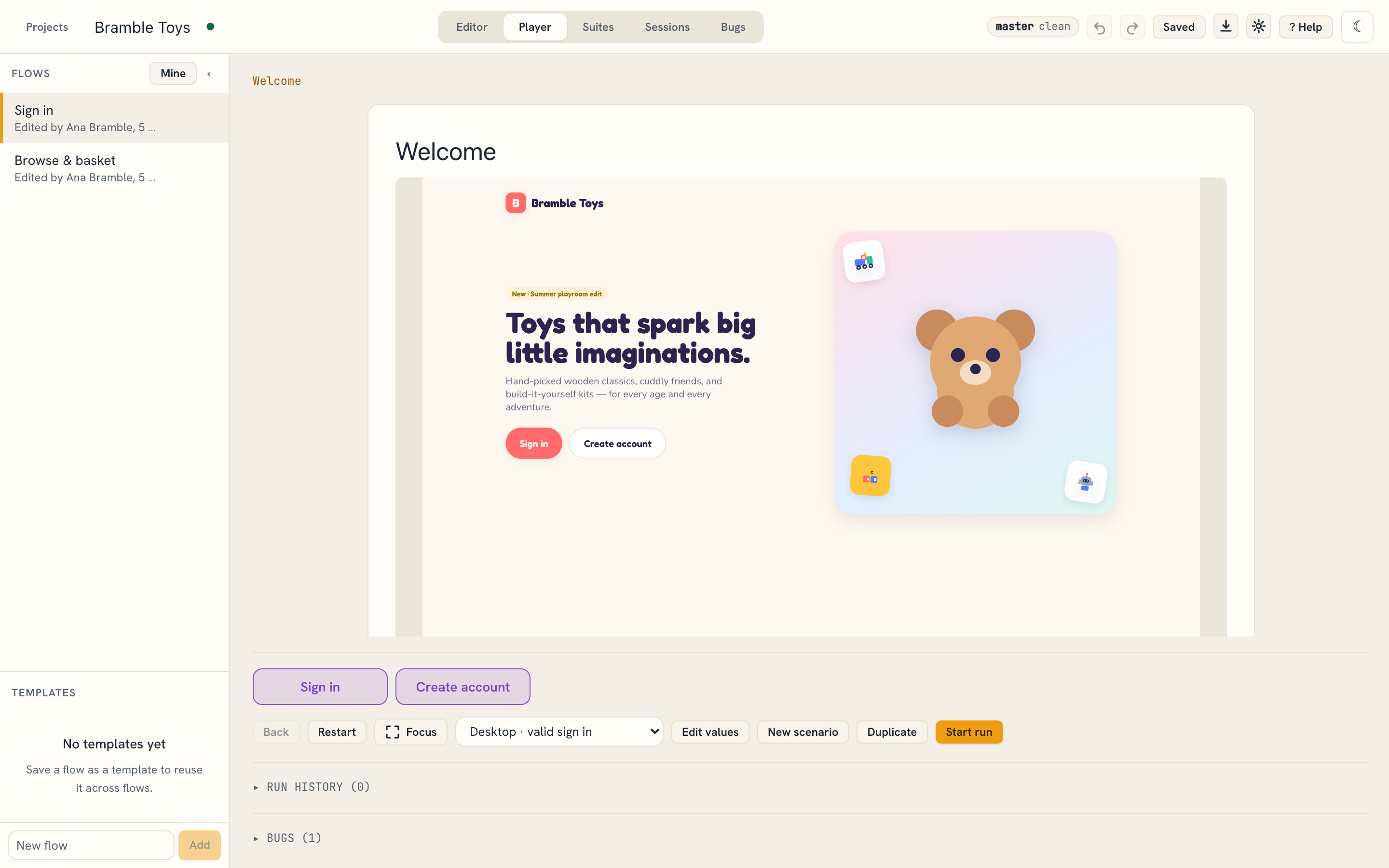
Welcome card with the desktop background Switch to Mobile · valid sign in. The same card now shows the tall mobile screenshot.
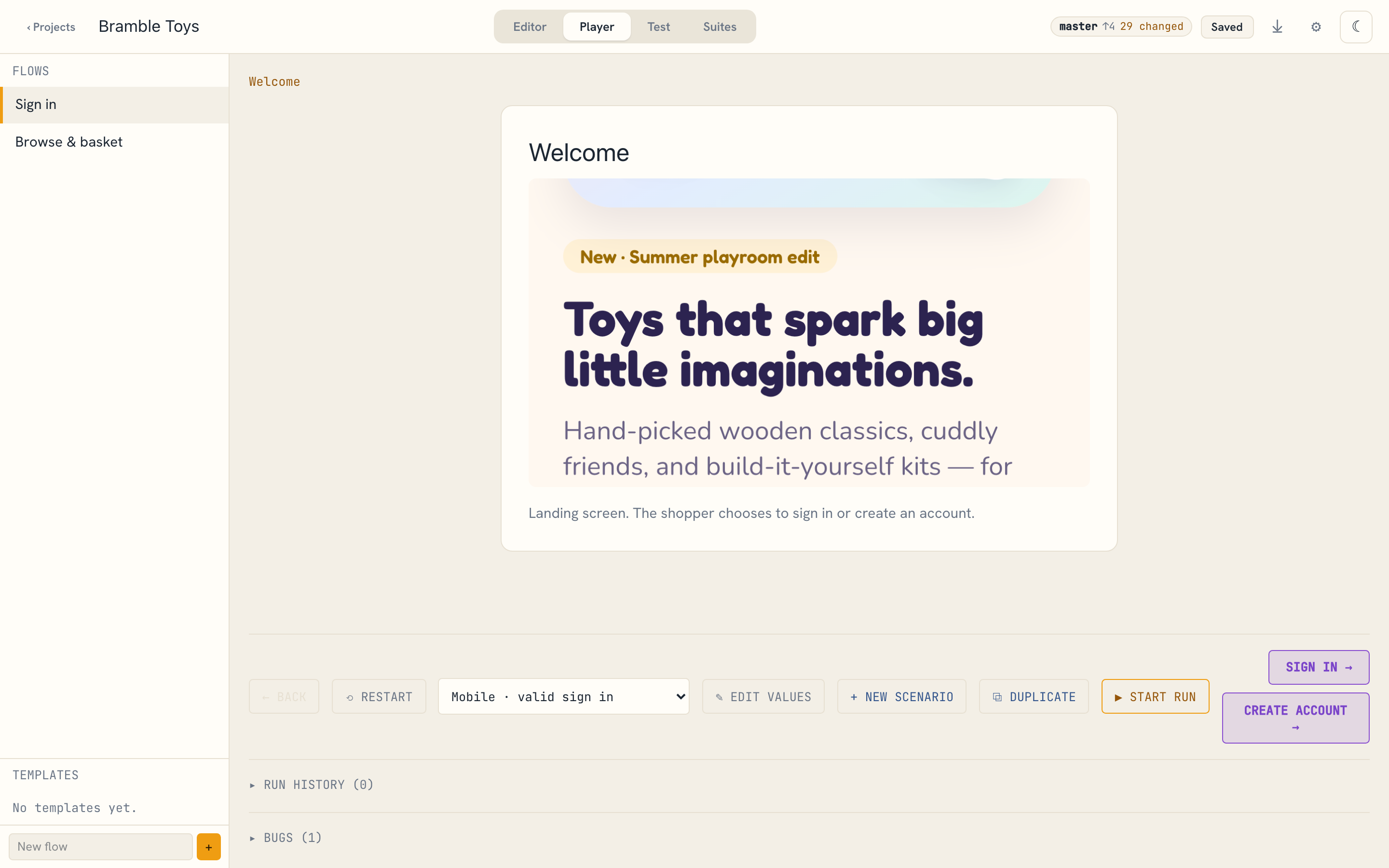
Welcome card with the mobile background
Same flow, same path, two platforms — selected entirely by the scenario.